Plugin conflicts that quietly break SEO outputs
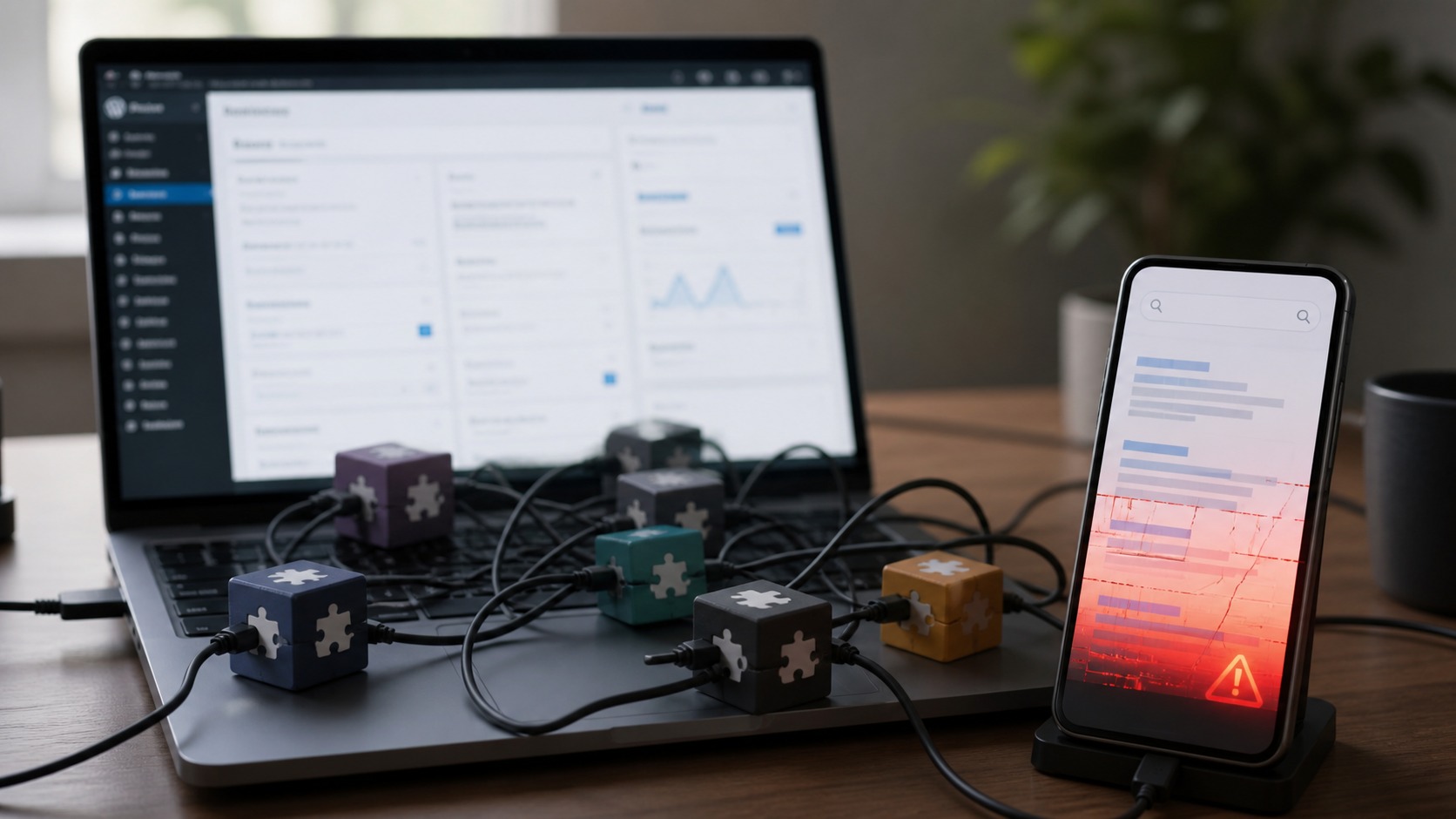
On WordPress, your SEO output depends on WordPress core, your theme, and your plugins working together.
When they clash, the site can look fine to you while search engines get weaker signals.
You may see titles, meta descriptions, canonicals, sitemaps, or structured data change without a clear warning.
Plugin overload can add weight, trigger clashes, and introduce errors that do not always show up as a full site crash.
Some plugins load scripts and styles on every page, which can slow mobile pages and shift what Google can read.
Google’s page experience guidance covers why loading and stability matter.
These effects change how Google can crawl and evaluate the site.
How conflicts and overload degrade what Google can crawl and evaluate
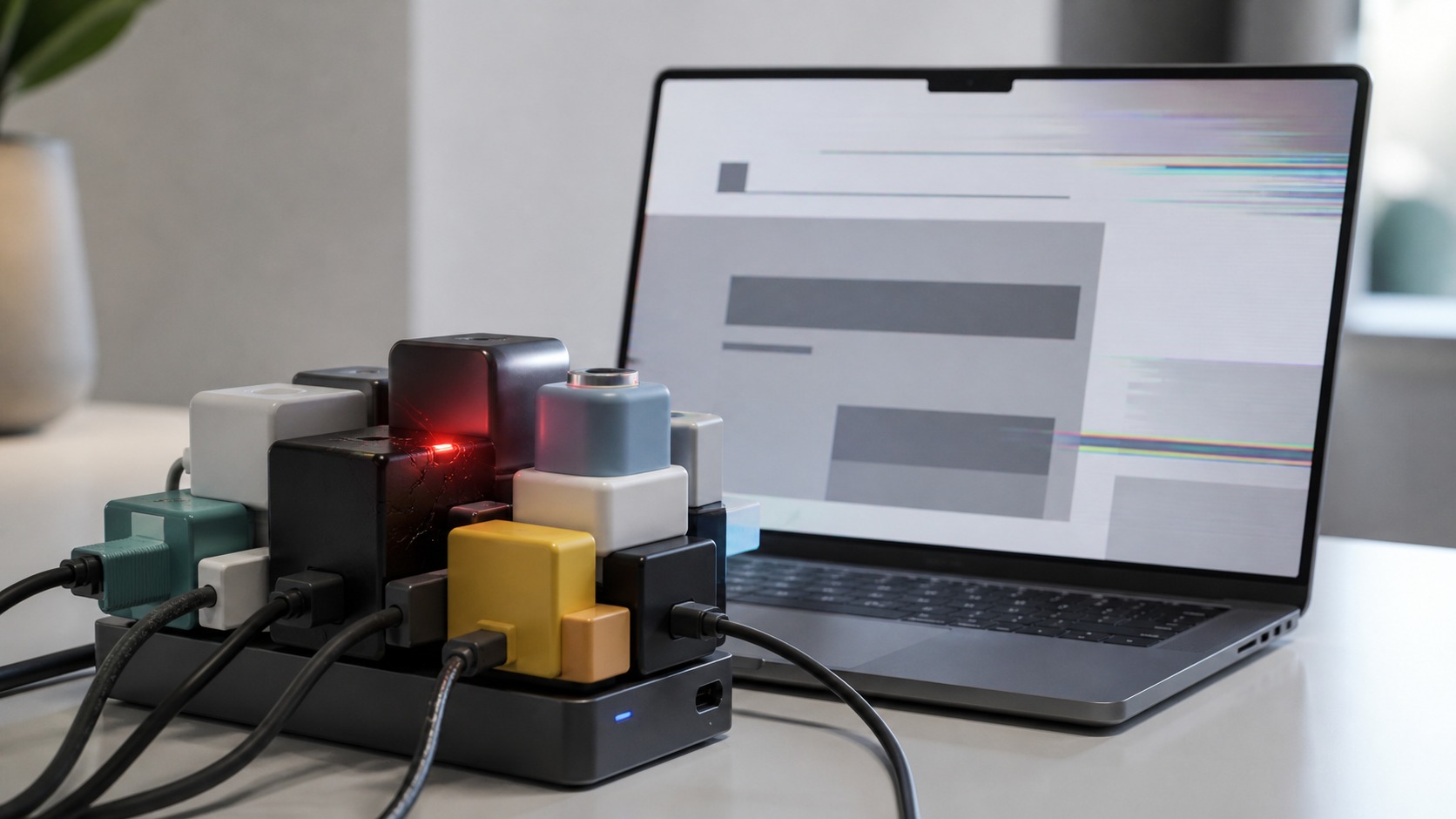
Each plugin adds code that the server must run and the browser must process.
Heavy scripts and large style files can delay page rendering, which can hurt performance metrics that come from real page loads; Google’s rendering performance guidance explains why that matters.
Some plugins load CSS and JavaScript sitewide even when a page does not need them, which raises page weight and increases time to first render.
Conflicts can also break front-end behavior, like menus, internal search, or forms, which can change how crawlers move through the site.
Conflicts also create content-level problems.
If two plugins handle the same SEO job, they may output the same tags twice or output competing versions.
A common example is duplicate structured data, where more than one plugin injects schema markup, and Google receives mixed signals.
Google’s structured data documentation shows why clean, consistent markup matters.
Similar overlap can happen with sitemap tools,
Open Graph tags for social sharing, and breadcrumb code.
When these parts disagree, you can get crawl inefficiency, broken templates, or pages that render with missing sections or layout shifts.
Those symptoms point to a need for controlled testing so you can find the exact component involved.
Diagnosing the conflicting component without harming visitors
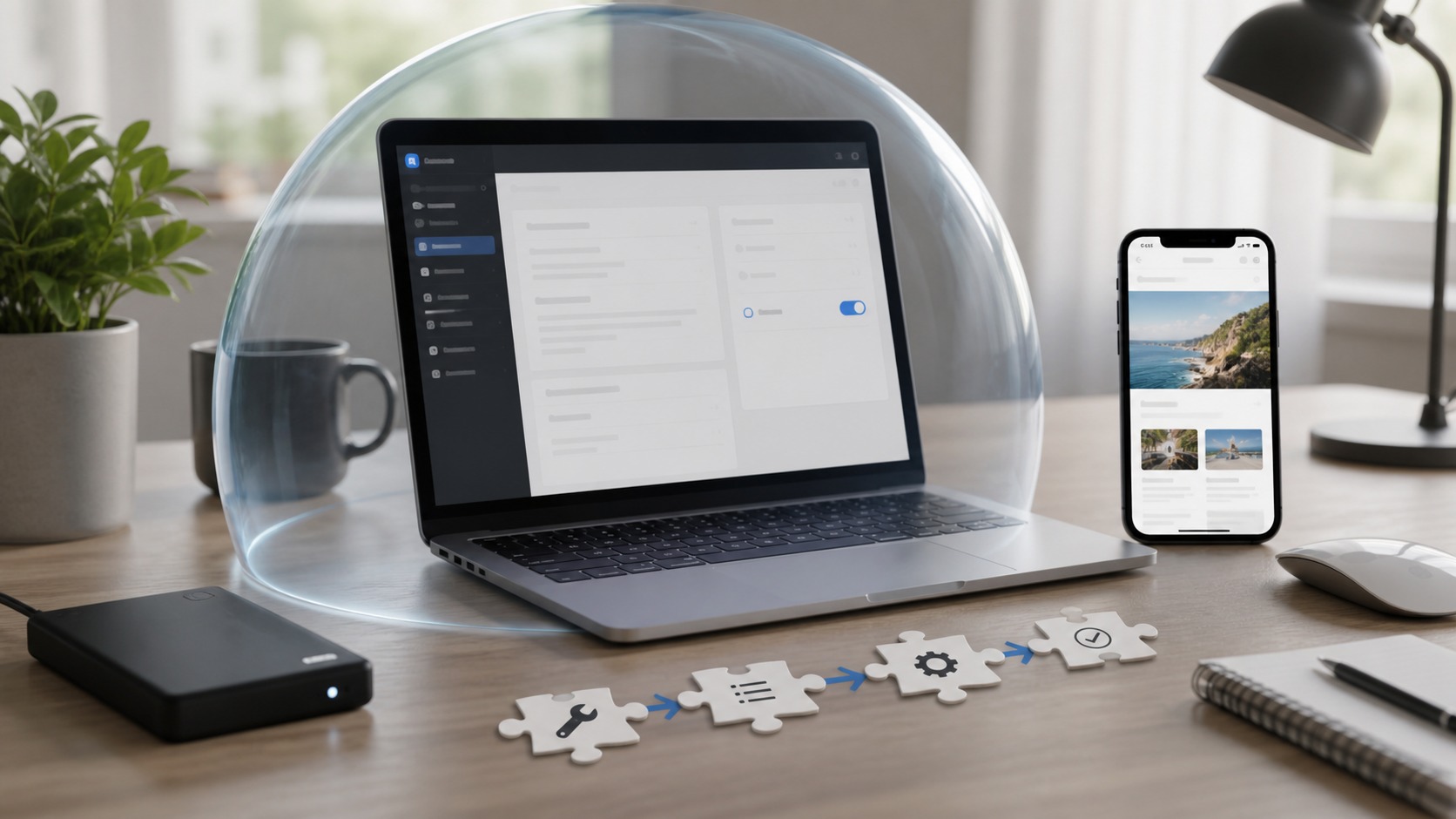
The safest approach is to test in a controlled session that’s invisible to visitors.
The Health Check & Troubleshooting plugin gives you exactly that, and WordPress’s FAQ troubleshooting guide uses the same isolate-and-retest approach.
Before you start: Update WordPress core, your theme, and all plugins.
Make a backup.
Step 1: Enable Troubleshooting Mode
Go to Tools > Site Health > Troubleshooting and activate it.
This disables all plugins and switches to a default theme for your login session only.
Visitors continue seeing the live site normally.
Step 2: Reproduce the issue
With everything disabled, check whether the SEO problem still occurs.
This might mean viewing page source to inspect meta tags, testing a schema snippet, or confirming whether a sitemap loads.
Step 3: Re-enable in sequence, testing after each step
No access to the plugin?
Run the same process on a staging site manually: deactivate all plugins, switch to a default theme, reproduce the issue, then re-enable your SEO plugin > theme > remaining plugins in sequence.
Once you’ve identified the trigger, the next step is to reduce the chance that a similar conflict appears again.
Decisions to prevent repeat conflicts and SEO regressions
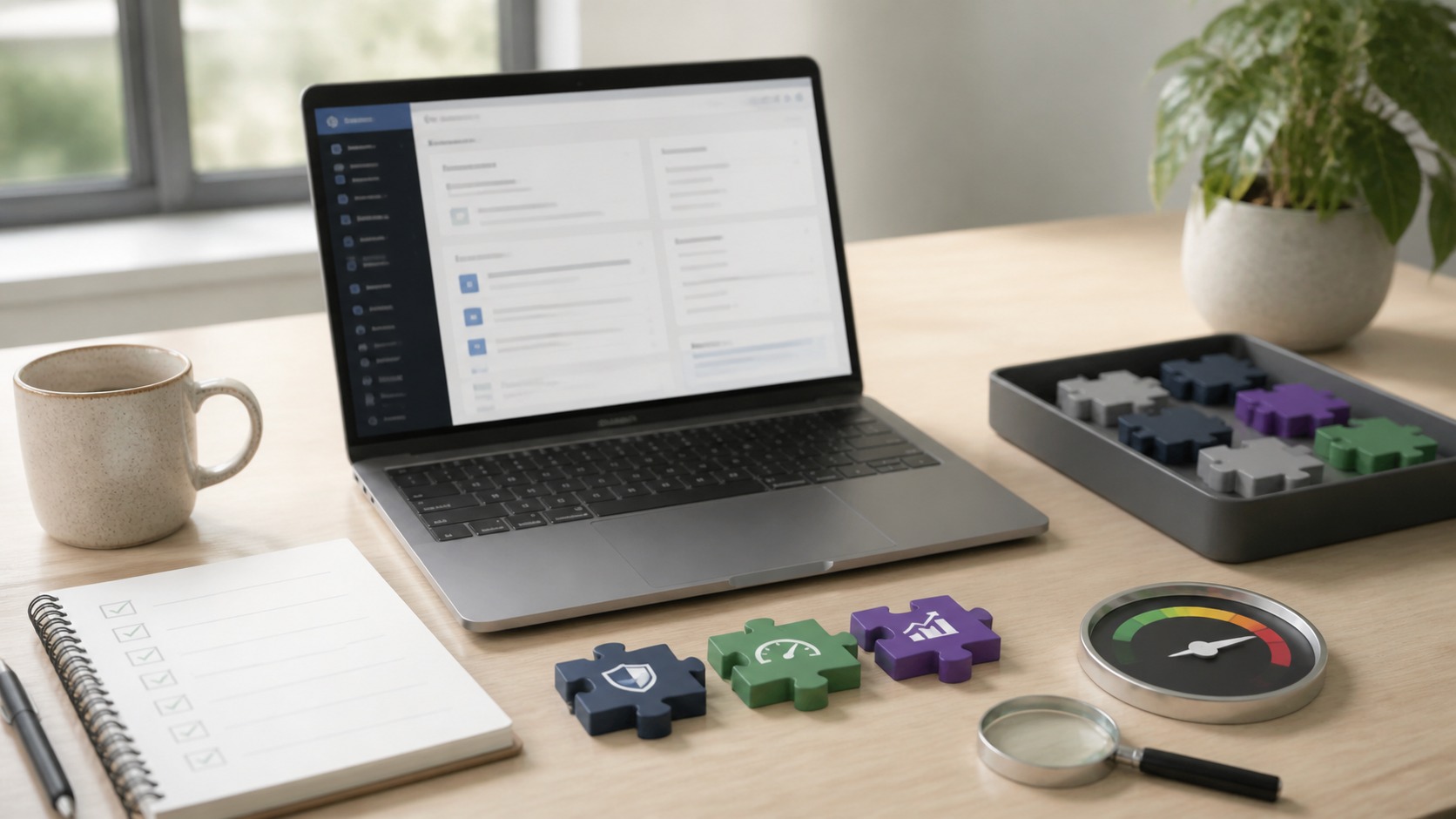
After you find the source, keep your plugin stack simple so the same class of problem does not repeat.
Remove plugins that duplicate functions, especially overlapping SEO, sitemap, schema, and social or Open Graph features, since overlap raises the odds of competing outputs.
Keep only plugins you use, and delete inactive plugins instead of leaving them installed.
When you consider a plugin, check whether it receives updates and whether it fits your theme and WordPress version.
Security and performance fit into the same decision, because most WordPress vulnerabilities come from plugins and themes rather than WordPress core.
Treat each plugin as code that can affect speed, layout, and SEO tags, not just a feature switch.
After you remove or replace plugins, recheck the signals that surfaced during diagnosis, such as page speed, rendering, layout stability, meta tags, and structured data, so your changes match what Google can crawl and evaluate.
Frequently Asked Questions
Rankings dropped after a plugin update, but the site still looks normal. What should I capture first?
Record the affected URLs, the update time, plugin and theme versions, and current canonical, robots, schema, sitemap, and performance outputs before changing anything.
This baseline makes it possible to identify the altered signal and later prove whether the correction restored the expected output.
Can I test the conflict without disabling plugins for visitors?
Use a session-only troubleshooting mode or a staging copy so one component can be isolated without changing the live experience for other visitors.
Reproduce the same affected URL after each controlled change instead of disabling the entire live stack at once.
I found the conflicting plugin. Should I remove it or keep it?
Assign one plugin or theme component as the owner of each overlapping function, then remove or disable the duplicate output rather than keeping competing implementations.
If replacement is necessary, document the rollback point and confirm that the new component preserves every required SEO signal.
When is the plugin-conflict fix verified?
Clear the relevant caches and compare the rendered HTML, canonical, robots directives, schema, sitemap entry, and performance behavior against the recorded baseline.
The fix is verified only after the affected pages return consistent output and a fresh crawl no longer encounters the original conflict.